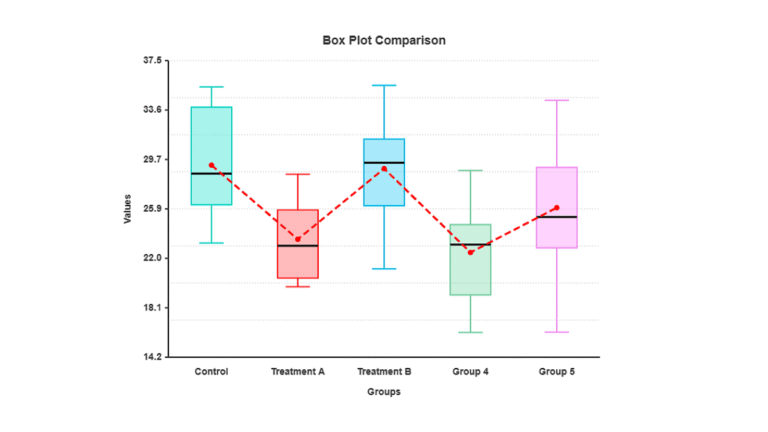
Box and Whisker Plot Maker
Plot Labels
Plot Options
Data Input & Management
Group 1
Group 2
Group 3
Generate Plot
Download Options
Analysis Results
Detailed Results
Generate a plot to see detailed statistical results.
Statistical Interpretation Your Result
Interpretation
Generate a plot to see interpretation of your box plot.
Download Your Analysis Report
Generate a comprehensive PDF report with the box plot, detailed results, and interpretation.
Did you know that visualizing data can make it 90% clearer? With so much data every day, we need good tools to understand them. A box and whisker plot maker helps us create clear and useful pictures of our data.
The use of an online box plot generator simplifies the data analysis. These tools are simple to use. They allow anyone to quickly create a box-and-whisker plot. With a free box and whisker plot generator, you can add your data and create plots quickly.
How to Use the Box and Whisker Plot Maker!
Load Sample Data: Click one of the sample dataset buttons (Normal Distribution, Skewed Data, Data with Outliers, or Group Comparison) to see examples and understand the expected data format.
Input Your Data:
- Enter comma-separated numerical values in each group’s text area
- Give each group a descriptive name
- Choose colors for each group using the color picker
Key Features
Plot Types: Choose from six visualization options:
- Standard box plot (shows quartiles, median, whiskers, outliers)
- Whisker plot only (simplified version)
- Violin plot (shows data distribution shape)
- Combined box + violin plot
- Mean plot (focuses on averages with error bars)
- Median plot (emphasizes median values)
Customization Options:
- Adjust plot title, axis labels, and all text sizes
- Modify colors for background, mean points, median lines, and connection lines
- Toggle outliers and mean points on/off
- Connect mean points across groups with customizable line styles
Data Management:
- Add or remove groups as needed
- Generate random test data
- Clear all data to start fresh
Best Practices
Data Entry: Ensure that your data contain only numbers separated by commas. The tool automatically filtered out invalid entries.
Group Comparison: Use 2-5 groups for optimal visual clarity. More groups can become more cluttered.
Download Options: Choose the appropriate resolution and format based on your needs.
- PNG/JPEG for general use
- SVG for scalable graphics
- PDF for documents
- Higher resolutions (2x-4x) for publications
Statistical Information
The tool automatically calculates and displays the following:
- Mean, median, quartiles (Q1, Q3)
- Interquartile range (IQR)
- Sample size and outlier count
- All standard box plot statistics
The “Generate Box Plot” button can be used after making changes, or the plot options can be modified in real time, as most settings update the visualization automatically.
Key Takeaways
- Understand the importance of data visualization in the analysis.
- Learn how to use a box and whisker plot maker effectively.
- The benefits of using online box plot generators are discussed.
- The data were loaded into a box plot generator.
- Visualize your data with ease using a free box and whisker plot generator.
What Are Box and Whisker Plots?
Box and whisker plots help us see how data is spread out. They are created using tools such as a box plot generator or boxplot maker. These plots show the spread of the data and how it varies.
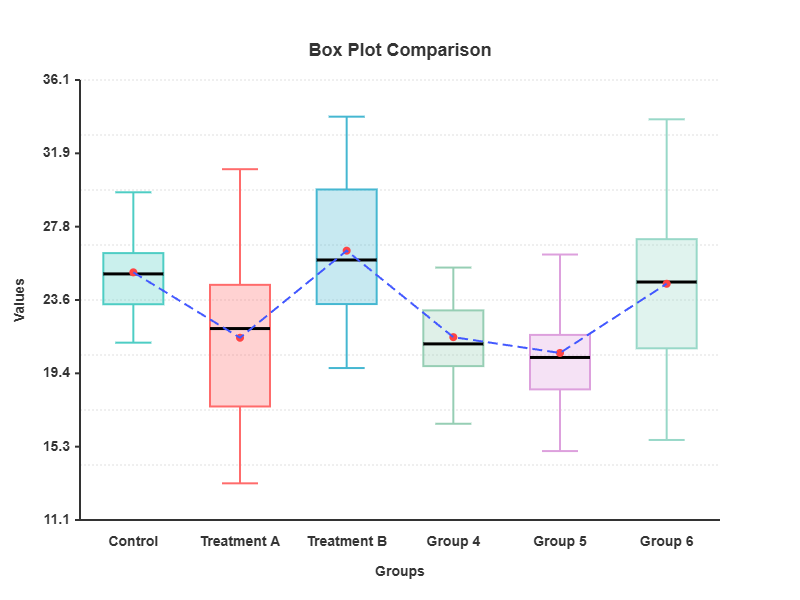
The Anatomy of a Box Plot
A box plot has parts that provide information about the data. Understanding these parts helps us better understand the plot.
The Box: Quartiles and Median
The box shows the middle 50% of data. The lower part represents the first quartile (Q1). The upper part represents the third quartile (Q3).
The line inside the box represents the median (Q2). It shows where the data are in the middle.
The Whiskers: Range and Variability
The whiskers show the range of the data and how it varies. They extend from the box to the minimum and maximum values of the data. Data points outside the whiskers are considered outliers.
When Box Plots Are Most Useful
Box plots are great for comparing data sets. With a box and whisker plot generator, plots can be created for different groups. This makes it easy to see how they compare with each other.
Using a box plot generator or boxplot maker simplifies the creation of these plots. It helps you analyze and present your data well.
Why Box and Whisker Plots Transform Data Analysis
Box and whisker plots are great for showing data. They make it easy to see how the data are spread out. These plots can be created online, and a lot can be learned from them.
Instantly Visualizing Data Distribution
Box plots show data quickly. They have the minimum, first quartile, median, third quartile, and maximum values. This helps to identify odd data points.
Spotting Outliers at a Glance
Box plots are good at showing odd data points. You can set up your plot to clearly show these points. This is helpful for finding data that stands out.
Making Data Set Comparisons Intuitive
Comparing datasets is easier with side by side boxplot views. They help to see how datasets are different or alike. This is useful in many areas, such as business and science.
| Feature | Box Plot | Histogram |
|---|---|---|
| Data Distribution | Clearly shows quartiles and outliers | Shows distribution shape |
| Outlier Detection | Explicitly highlights outliers | May obscure outliers |
| Comparative Analysis | Easy with side-by-side plots | Can be challenging |
Statistical Foundations for Effective Box Plots
Box plots rely on understanding quartiles, percentiles, and central tendency. These concepts are key to making box plots meaningful and interpretable.
Mastering Quartiles and Percentiles
Quartiles and percentiles are essential components of box plots. The first quartile (Q1) was the 25th percentile. The median (Q2) is the 50th percentile of the data. The third quartile (Q3) was the 75th percentile.
For example, exam scores can be analyzed using a box plot maker. It shows how the scores are spread across quartiles.
Understanding Central Tendency Measures
Central tendency measures, such as the median and mean, show a dataset’s average. The median is the key in box plots, dividing the data into two parts.
Median vs. Mean in Box Plots
The median is more reliable than the mean in the box plots. It is less affected by outliers. However, the mean adds context, which is useful when comparing datasets.
When to Include Additional Statistics
Adding the mean and standard deviation to box plots offers a deeper look at the data. This is helpful when comparing different data sets.
The Mathematics Behind Whiskers and Outliers
The whiskers in the box plots reach the data’s minimum and maximum within 1.5 times the IQR. Data outside this range were considered outliers. Understanding this math is vital for understanding box plots.
| Statistical Measure | Description |
|---|---|
| Q1 (First Quartile) | 25th percentile of the data |
| Median (Q2) | 50th percentile, dividing the data into two equal parts |
| Q3 (Third Quartile) | 75th percentile of the data |
| IQR (Interquartile Range) | Difference between Q3 and Q1, used to calculate whiskers and outliers |
The Best Free Box and Whisker Plot Maker Tools
Online boxplot makers make data distributions easy. They help students, researchers, and analysts to share their findings.
Browser-Based Box Plot Generators
Browser tools are useful for fast data plotting. You do not need to download anything. Simply enter your data in the table or paste them from a spreadsheet.
Tool Features Comparison
When selecting a tool, consider its features. Check whether it can handle many datasets and whether you can customize colors and fonts. A good box plot generator is easy to use and has many features.
Ease of Use Ratings
The ease of use of a tool is important. It should be simple to input the data and create plots. Look for tools with drag-and-drop functionality or easy data input processes.
Downloadable Software Options
For offline work, downloadable software options are available. They have more features and controls. Some are made for statistical analysis and can create many charts, including box plots.
Programming Libraries for Developers
Developers and data scientists like programming libraries for boxplots. They are good for large datasets and larger projects.
Python Solutions
Python is excellent for data analysis, and Matplotlib and Seaborn are the top choices for box plots. They are well documented and have large communities for assistance.
R and JavaScript Options
R is famous for statistics and data visualization. JavaScript’s D3.js is excellent for web interactive box plots. Both offer many customizations and complex visuals.
Step-by-Step: Creating Your First Box Plot
I will show you how to create your first box plot for free. This guide will help you prepare your data, select the appropriate tool, and create a simple box plot.
Preparing and Formatting Your Data
Before creating a box plot online, prepare your data. Ensure that your data are clean and easy to read. Excel or Google Sheets can be used for this purpose.
- Enter your data values and press Enter after each value.
- Use clear and concise headers for the data columns.
- Check for outliers or errors in the data.
Selecting the Right Tool for Your Needs
Choosing the right box plot maker-free tool is key. Consider the following when selecting a tool:
- Ease of use: Choose a tool that is easy to use.
- Customization options: Look for tools that allow you to change colors, fonts, and sizes.
- Export options: Ensure that the tool allows you to save or export your box plot as desired.
Walkthrough: Basic Box Plot Creation
Now, let us create a simple box plot using an easy box plot maker. Here’s how:
Data Input Methods
Most box plot makers allow you to enter or import data directly. You can also copy and paste from spreadsheets.
Generating and Reviewing Your Plot
After entering your data, create a box plot. Look at your plot to ensure that it shows your data correctly. Check for any odd points or patterns in the data.
By following these steps, a box plot that shows the data well can be created. Try different tools and options to determine what works best for you.
Advanced Box and Whisker Plot Generator Features
Advanced box and whisker plot generators have some cool features. They help you see and understand the data better. You can create your plots in your own way.
Customizing Colors, Fonts, and Dimensions
These tools allow you to change the appearance of your plot. You can choose colors, fonts, and sizes. This makes the plot look just right for your needs.
For example, the appearance of the box plot can be customized. It will be updated as you make changes.
Here is an example of how customization options can be applied:
| Customization Option | Description | Benefit |
|---|---|---|
| Color Scheme | Change the color palette to match your brand or presentation theme, if necessary. | It enhances the visual appeal and consistency. |
| Font Style | Select various font styles to improve readability. | This improves the overall readability of the plot. |
| Plot Dimensions | Adjust the size of the plot to fit your document or presentation requirements. | Ensures that the plot fits perfectly in the chosen medium. |
Adding Statistical Markers and Annotations
These tools also allow the addition of special markers and notes. This is useful for identifying key data points. With an interactive whisker plot tool, you can dive into the data.
Saving, Exporting, and Embedding Options
Finally, users can save, export, and share their plots in various ways. They can be saved in various formats, exported for other applications, or embedded in websites and slides. This makes it easy to share the findings.
You can export your plot as an image or embed it online as an image. This makes it easy to share with others or include in reports.
Mastering Side-by-Side Box Plots for Data Comparison
Learning to create side-by-side box plots helps to compare data sets. This method shows how different datasets compare. It is key to understanding the data.
When Comparative Analysis Is Most Valuable
Side-by-side box plots are useful for observing how things are different or alike. For example, in a school, you might look at test scores from different places. In business, for example, one could check sales in different areas or with different products.
Configuring Multiple Data Sets Correctly
To create a good side-by-side box plot, the data must be set up correctly. This means:
- Make sure each data set has its own label
- Put your data in a way that your tool can understand
Grouping and Labeling Strategies
When grouping data, it is important to label them well. Use names that clearly indicate what each dataset is. For example, if you’re looking at test scores, you might use “Class A,” “Class B,” and “Class C.”
Color Coding for Clarity
Using different colors for each box plot makes it easier to interpret. However, ensure that the colors are easy to distinguish. In addition, choose colors that make sense, such as using similar shades for related groups.
Reading and Interpreting Comparative Results
When examining the side-by-side box plots, the median, IQR, and outliers should be checked. A higher median indicates that one dataset may be performing better. Differences in the IQR show the variability of the data.
By becoming proficient in creating and interpreting side-by-side box plots, you can gain deeper insights from your data. This helps you make better choices based on what you observe.
Handling Outliers in Your Box and Whisker Plots
Outliers in box plots can provide important clues or change the data. It is important to know how to spot and handle these points.
Methods for Identifying Statistical Outliers
We used special methods to identify statistical outliers. One method is to use the interquartile range (IQR). Data points outside Q1 – 1.5 × IQR or Q3 + 1.5 × IQR were considered outliers. Outlier identification is key to understanding data and making intelligent choices.
To spot outliers, we can use tools such as statistical software. Many box plot generators can find and show outliers in the plot.
Configuring Outlier Display Options
After identifying the outliers, we can choose how to show them on the box plot. Most box plot tools allow us to change the appearance of outliers, such as their color or size. This makes the plot clearer and more visually appealing.
We can show outliers as dots or use a special color. Some tools even allow us to add labels to outliers, providing more information.
Extracting Insights from Outlier Patterns
Outliers can show interesting things or oddities in the data. By examining these patterns, we can learn more about our data. For example, outliers may indicate errors, unusual events, or significant trends that were previously unnoticed.
To obtain insights from outliers, we need to examine them with the rest of the data. This may involve conducting further research or employing alternative statistical methods to determine the significance of outliers.
Five-Number Summary to Box Plot Conversion
I can turn my data into a clear picture by creating a box plot from the five-number summary. This is great when I already have summary statistics.
Working with Pre-Calculated Summary Statistics
With a five-number summary, I have the minimum, first quartile (Q1), median, third quartile (Q3), and maximum values. I can simply place these into a box plot generator. This saves time and eliminates the need for raw data.
Tools That Support Summary Data Input
Many box plot generators allow me to input summary statistics directly. Online calculators and data visualization software are good examples of this. I can enter my data in a table or paste them from a spreadsheet.
| Tool | Summary Input | Customization Options |
|---|---|---|
| Online Statistical Calculator | Yes | Limited |
| Data Visualization Software | Yes | Extensive |
| Spreadsheet Software | Yes | Moderate |
When the Five-Number Approach Makes Sense
Using a five-number summary for box plots is useful when raw data are missing. It is also quick to observe data patterns. It is also good for comparing different datasets.
The five-number summary can be used to create box plots quickly. These plots provide important insights into the data.
Interactive Box and Whisker Plot Tools for Dynamic Analysis
Interactive box and whisker plot tools change the way we analyze data. They allowed us to see data live, helping us find insights that we might have missed.
The Power of Interactive Data Visualization
Interactive data tools allow us to explore our data. With an interactive whisker plot tool, we can see the exact values by hovering. We can zoom in and filter out what is not important.
Top Interactive Box Plot Creation Platforms
Many platforms help create interactive boxplots. When picking a box and whisker plot online generator, look for these features:
Hover and Click Features
This allows us to interact with the plot. We can see detailed information about the data points.
Filtering and Zooming Capabilities
Filtering allows us to focus on certain data. Zooming helps us to look at specific parts of the plot.
| Platform | Hover/Click Features | Filtering/Zooming |
|---|---|---|
| Plotly | Yes | Yes |
| Tableau | Yes | Yes |
| Power BI | Yes | Yes |
Embedding Interactive Plots in Websites and Presentations
Interactive plots can be shared in various locations. This makes it easy to share findings, from websites to presentations.
The use of interactive box and whisker plot tools improves data analysis. This makes your findings more fun and easy to understand for everyone.
Creating Professional Box and Whisker Plots in Excel
Excel is excellent for creating box-and-whisker plots. This helps to visualize the spread of the data. You can create plots that show important details about your data.
Navigating Excel’s Statistical Chart Options
Excel has many chart options, such as box and whisker plots. To find them, go to the “Insert” tab. Then, click on “Statistical Charts” in the “Charts” group. You will see the box and whisker plot option there.
Detailed Excel Box Plot Tutorial
The following steps were used to create a box-and-whisker plot in Excel:
Data Organization Requirements
First, ensure that your data are ready. Excel requires it in one column or row. If not, you might need to fix it before you can make the plot.
Chart Creation and Formatting Steps
To make the plot, do this:
- Select the data you want to display.
- Go to the “Insert” tab and click on “Statistical Charts.”
- Select “Box and Whisker” from the menu.
- Excel will create a basic plot.
- Use the “Chart Tools” tabs to make it look better.
Excel Tips for Publication-Quality Box Plots
To make your plots look good for publishing, consider the following tips:
| Tip | Description |
|---|---|
| Use clear labels | Ensure that your labels and titles are easy to read. |
| Customize colors | Change the colors to make your plot look nice or to match your style. |
| Adjust plot size | Make your plot fit the space you have available. |
By following these tips, you can create professional box and whisker plots in Excel. They will help you share your data insights.
Troubleshooting Common Box Plot Creation Problems
Box plots help us see data clearly. However, creating them can be challenging. Many problems can occur, from obtaining the data to understanding the plot.
Data Preparation and Formatting Issues
Preparing your data is the key. It must be clean and accurate. You must check for incorrect data and missing bits.
| Issue | Description | Solution |
|---|---|---|
| Incorrect Data Format | Data not organized correctly for box plot creation. | The data were reorganized into appropriate categories or columns. |
| Missing Values | Presence of missing or null values in the dataset. | Decide on a strategy to handle missing values (e.g., imputation or removal). |
| Outliers | Data points that were significantly different from other observations. | Identify and decide how to handle outliers (e.g., removal or transformation). |
Misinterpreting Box Plot Elements
It is easy to get the box plot parts wrong. It is important to understand the meaning of each part.
Whisker Confusion
Whiskers show the data range, except for outliers. Knowing this helps to avoid mistakes.
Outlier Identification Errors
Outliers are data points outside the whiskers. Incorrectly identifying these factors can lead to erroneous conclusions. It is vital to know how to spot them.
Design Choices That Can Mislead Your Audience
The appearance of a box plot is important. Aspects such as color and scale can significantly impact the design. They can help or hide messages.
Understanding these issues helps create better box plots. Good data, a clear understanding, and a smart design are key. Troubleshooting these problems is vital for obtaining a good data display.
Real-World Applications of Box and Whisker Plots
Box and whisker plots show data in a clear way. They are used in various fields. This makes complex data easier to understand.
Scientific Research and Publication
In science, these plots help to show the study results. They make it easy to observe data differences. For example, they can demonstrate how different treatments affect patients.
Business Intelligence and Financial Analysis
In business, they assist with financial analysis. They show things such as stock prices and sales. This helps to identify trends and odd points.
Educational Assessment and Performance Evaluation
Schools use them to check students’ performance. They see where students need help. This helps teachers understand what to focus on.
Student Performance Visualization
They show how students perform in different subjects. Teachers can identify where students are experiencing difficulties.
Comparing Teaching Methods
They compared the scores of different teachers. This helps to identify the best teaching methods. This helps create better lessons.
| Field | Application | Benefit |
|---|---|---|
| Scientific Research | Presenting study results | Easy comparison of different groups |
| Business Intelligence | Financial analysis and forecasting | Identifying trends and outliers |
| Education | Evaluating student performance | Identifying areas for improvement |
Box and whisker plots are very useful. They help in understanding and making decisions in many areas.
Conclusion
Box and whisker plots are great for understanding data. A free maker or generator can be used to create them. This helps you see how the data are spread out and find special points.
These plots are based on important statistics, such as quartiles and percentiles. They help you better understand your data. Professional plots can be created using the appropriate tools.
Learning about box-and-whisker plots can improve your data analysis skills. It is useful in many fields, such as science, business, and education. Try different generators to view your data in a new way.
FAQ
What is a box and whisker plot maker?
A box and whisker plot maker is a tool online. It helps you make box plots to see and understand data.
How do I create a box plot using an online box plot generator?
Please upload or type your data. Select your options, and the tool will create a box plot for you.
What are the components of a boxplot?
A box plot has a box, whiskers, and median line. The box shows the middle range of the data. The whiskers represent the data range. The median line represents the middle value.
When are box plots most useful for data analysis?
Box plots are great for comparing data sets. They help identify outliers and show the middle and spread of the data.
Can I customize the appearance of my box plot?
Yes, you can change the colors, fonts, and size. This makes your box plot look exactly how you want it to.
How do I handle outliers in my boxplot?
You can choose how to display the outliers. Some tools allow you to include, exclude, or show them differently.
Can I create side-by-side box plots for data comparison?
Yes, many tools allow you to create side-by-side box plots. This helps in comparing different datasets.
How do I convert a five-number summary into a box plot?
Use a tool that allows you to input a five-number summary. It will create a box plot for you.
Can I create interactive boxplots?
Some tools have interactive features. You can hover, click, filter, and zoom in on your box plots.
How do I create a box plot in Excel?
In Excel, use the chart options and follow the tutorial. It is easy to create a box plot.
What are some common problems encountered when creating the box plots?
Problems include preparing data and understanding the plot. In addition, design choices can confuse people.
What are some real-world applications of box and whisker plots?
Box and whisker plots help in science, business, finance, and education. They make data easy to see and comprehend.