Linear Regression Scatter Plot Generator
Create beautiful scatter plots with regression analysis. Upload your data or use sample datasets, customize the visualization, and download your results.
Plot Labels & Appearance
Plot Options
Data Input
X Values
Y Values
Generate Plot
Generating plot...
Statistical Summary
Analysis Results
Detailed Results
Generate a plot to see detailed statistical results.
Interpretation Your Results
Interpretation
Generate a plot to see interpretation of your scatter plot.
Download Your Analysis Report
Generate a comprehensive PDF report with the scatter plot, detailed results, and interpretation.
Are you aware that the human brain processes visual data representations 60,000 times more quickly than text? This underscores the crucial role of data visualization in today’s world. I have put together this guide to assist you in mastering the art of creating visualizations.
These can be applied to various tasks, such as analyzing sales patterns or exploring scientific data. A scatter plot generator transforms numerical data into easily understandable visuals.
You no longer need to be a data scientist to produce appealing graphs. With the right tools, uncovering data connections becomes straightforward.
In this guide, I will introduce you to various tools, including Excel and Google Sheets. You will discover how to create trendlines that accurately depict your data. Find the tool that best suits your needs.
Key Takeaways
- Visual data analysis tools process information 60,000 times faster than text formats
- Modern graphing tools eliminate the need for advanced statistical knowledge
- Both free and premium options exist for creating professional visualizations
- A quality regression line graph maker reveals hidden patterns in your datasets
- Trendlines help predict future outcomes based on current data relationships
- Multiple platform options allow flexibility in workflow integration
Understanding Scatter Plots and Lines of Best Fit
The basics of scatter plots are as follows. They are key to data analysis. Understanding these basics helps you create and understand your visualizations better.
These ideas are the foundation of all the techniques I will share. They help whether one is a student or a professional. Understanding them makes the work easier.
What Is a Scatter Plot?
A scatter plot is a graph that shows two variables as points on the graph. It is honest about the data. Each point represents a single observation.
The x-axis represents one variable, and the y-axis represents the other. It is similar to plotting locations on a map but with data variables.
For example, it can show how study hours relate to test scores. Each student was represented as a point on the graph.
Scatter plots are simple. Patterns and outliers can be easily observed. They help the brain to better understand the data.
Why Add a Line of Best Fit?
Adding a line of best fit improves the analysis. It shows the pattern and direction of the data. This line is also known as a trendline or regression line.
I added a line of best fit to answer the three questions. First, is there a relationship between them? Second, how strong is it? Third, can I make predictions?
The line of best fit passes through the data points. It is similar to a path through a data cloud. This method is objective in identifying trends.
Using a scatter plot and line of best fit maker makes this easy. The tool performs the calculations for the user. You can then focus on what it means.
What Type of Relationship Does the Scatter Plot Show?
This is a key question when analyzing the scatter plots. The answer shows whether and how the variables are connected.
When someone asks “what type of relationship does the scatter plot show,” they are asking about correlation. Understanding the correlation types helps in understanding any scatter plot.
There are three main types of relationships; let us examine each of these so that you can easily identify them.
Positive Correlation
A positive correlation indicates that both variables increase together. Points that move from left to right indicate a positive relationship.
Positive correlations were observed. For example, studying more often leads to better scores on tests. The line of best fit slopes up.
The steeper the slope, the stronger is the positive correlation. A straight diagonal line indicates a perfect positive correlation, which is rare.
Negative Correlation
A negative correlation indicates that one variable decreases as the other increases. The points decrease from left to right.
Consider a car’s age and its resale value. As age increases, the value decreases. This is a negative correlation with a downward-sloping line.
Another example is the outdoor temperature and heating costs. Higher temperatures imply lower heating costs.
The steepness of the slope indicates the strength of the negative correlation. A steep decline indicates a strong negative correlation.
No Correlation
Sometimes, the scatter plot does not show a pattern. The points were scattered everywhere, and the line of best fit was nearly horizontal.
No correlation means that the variables do not relate to each other. Changes in one do not affect the other.
For example, shoe size and test scores or hair color and income likely have no correlation. The scatter plot shows no trend.
Knowing when there is no correlation is important. This means that the variables act independently. This information is useful for your analysis.
You now know the basics of scatter plots. Next, I will show you how to use the tools to create these visualizations. You will learn to interpret your results with confidence.
Choosing the Right Scatter Plot with Line of Best Fit Generator
The right scatter plot generator depends on your requirements. I have used many tools and found that the right one saves time and reduces stress.
Choosing between a scatter plot generator free online and desktop software is key. Each has its own strengths, from easy access to advanced features.
I will help you choose the best tool for your data requirements. Understanding these differences will facilitate your work from the outset.
Free Online Tools vs. Desktop Software
Accessibility is the first thing to consider. A scatter plot generator free online works on any device with internet. This means that data can be analyzed from a laptop, tablet, or phone.
Desktop software, such as Microsoft Excel, has more features for complex analysis. These programs work offline, which is advantageous when traveling or without internet access.
Online tools are easy to use for quick visualization. Desktop applications offer better data security because the information remains on the user’s machine.
| Feature | Free Online Tools | Desktop Software | Best Use Case |
|---|---|---|---|
| Accessibility | Any device with internet, cross-platform compatibility | Specific computer only, requires installation | Online for collaboration, desktop for dedicated workstations |
| Cost | Completely free, no purchase needed | Free (Google Sheets) to $139+ (Excel license) | Online for budget projects, desktop for professional environments |
| Features | Basic to moderate statistical functions | Advanced analysis, macros, extensive customization | Online for simple regression, desktop for complex modeling |
| Data Security | Cloud-based storage, depends on provider | Local storage, full control over data | Desktop for sensitive information, online for general use |
| Speed | Depends on internet connection | Fast processing, no connectivity issues | Desktop for large datasets, online for small to medium data |
Neither option is always better. Your specific needs decide which tool is best.
Key Features to Look For in a Scatter Plot Maker
Good generators have several key features. This improves your analysis and makes your results look professional.
A quality best fit curve generator offers many trendline options. Tools that support different curves for various data patterns should be identified.
The following are the must-have features to check before choosing a tool:
- Multiple data set support: Plotting several data series on one graph helps compare trends and patterns.
- Statistical calculations: Automatic calculations of correlation coefficients and R-squared values save time and reduce errors.
- Export options: High-quality image formats like PNG and PDF make your graphs look good in presentations. CSV export keeps your data for further analysis.
- Customization controls: Flexible color schemes and adjustable axis scales let you match your brand and improve readability.
- Interactive features: Zoom, point identification, and hover-over data values make exploring your data easier and more revealing.
The best generators are simple yet powerful in their design. You want features without a difficult-to-use interface.
Check how the tool handles outliers and missing data. Robust error handling prevents crashes when the data are not perfect.
When to Use Different Types of Generators
I choose tools based on my project’s complexity and the audience. Simple tasks require basic tools, whereas complex projects require advanced software.
Use a basic scatter plot generator free online for quick visualizations. These tools are excellent for creating simple graphs quickly.
Google Sheets or Excel is best for business reports and moderate analysis. They offer the right mix of accessibility and power for most professional requirements.
For academic research or complex data modeling, specialized software is used. These tools offer the precision and features required for detailed analysis.
Consider your collaboration needs. Online tools are great for sharing and working together, whereas desktop software is better for individual work with sensitive data.
The size of the dataset is also important. Small datasets work well with any scatter plot generator free option. However, large datasets require desktop applications designed for heavy workloads.
In addition, consider how often you will use the visualization. Quick charts require online tools, whereas frequent analysis justifies learning desktop software.
Creating a Scatter Plot with Trendline in Microsoft Excel
Excel makes it easy to create scatter plots, even for beginners. It has a scatter plot maker with line of best fit that is already on most computers. This is beneficial for students, business analysts, and researchers.
Excel’s chart tools are now easy to use and are full of features. You do not need to know a lot about statistics to create great charts. With a few clicks, numbers can be transformed into stories that show patterns and relationships.
Step 1: Preparing and Organizing Your Data
First, organize your data appropriately. Start by placing your data in two columns with clear headers at the top. Place the x-axis data in the left column and the y-axis data in the right column.
For example, if you’re studying how study hours affect test scores, put study hours in column A and test scores in column B. Use simple headers like “Study Hours” and “Test Scores”.
Ensure that there are no empty rows in the data. Excel reads data from top to bottom, and gaps can cause issues. In addition, any text mixed with numbers was removed, as it would not plot correctly.
Step 2: Inserting the Scatter Plot Chart
Once your data are ready, select all the cells with your data, including headers. Click and drag from the top left to the bottom right to highlight everything. You will see a blue outline around your selection.
Go to the Insert tab in the Excel ribbon menu. Look for the Charts group and click on the “Scatter” icon, which shows dots in a pattern.
A dropdown menu shows different scatter plot styles. Select the first option, which shows only markers without lines. This is the classic look for adding trend lines.
The chart will appear on your worksheet. Excel uses column headers as axis labels, saving time. You can move the chart by clicking and dragging.
Step 3: Adding the Line of Best Fit
Now, your scatter plot trendline tool is shining. Click on any data point to select the entire series. You will see all points highlighted when selected correctly.
Right-click on any selected point. Select “Add Trendline” from the context menu. Alternatively, click the plus sign (+) icon next to your chart and check the “Trendline” box.
The Format Trendline pane opens on the right. This panel allows you to control the appearance and properties of the trendline.
Selecting Linear Trendline
The linear trendline is usually the default. It is the most common because it shows the overall direction of the data. It is perfect for data that increase or decrease at a steady rate.
Linear trendlines are ideal for steady growth, decline, or patterns. For example, sales growth, temperature changes, and the relationship between advertising and revenue often follow a linear pattern.
Choosing Other Regression Types
Not all data are straight. Excel’s trendline maker offers other options for different patterns as well. The polynomial option is suitable for data that curves or changes direction several times.
Exponential trendlines are used for data that grows or decreases rapidly. This can be observed in population growth, viral spread, and compound interest.
Logarithmic trendlines fit data that rise or fall quickly at first and then level off. Power trendlines are used for data that increase or decrease at a consistent rate when plotted on a logarithmic scale. Moving average trendlines smooth out the data to show trends more clearly.
Step 4: Displaying the Equation and R-Squared Value
The regression equation and R-squared values provide important insights. In the Format Trendline pane, find the two checkboxes at the bottom. First, check the box for “Display Equation on chart”
The equation will be displayed on your chart near the trendline. This formula allows you to predict values that are not in your original dataset. For a linear trendline, you will see something like y = 2.5x + 10 based on your data.
Next, check the box for “Display R-squared value on chart.” This number is shown below your equation. The R-squared value ranges from 0 to 1, showing how well the trendline fits the data.
An R-squared value close to 1 indicates a strong relationship. The trendline predicts the data points well. Values closer to zero suggest a weak relationship. Values above 0.7 indicate a strong relationship.
Step 5: Formatting Your Regression Line Graph
A well-formatted chart tells your story better. Click on the chart title and give it a descriptive name. For example, “Study Hours vs. Test Scores” tells viewers what the chart is about.
To change your trendline’s color, right-click on the line and select “Format Trendline.” In the Format pane, click the paint bucket icon to select a color. Use red or dark blue for trendlines when the data points are black or gray.
You can also make your trendline stand out by adjusting its width. In the same Format pane, look for the “Width” option under line settings. Make it 2 or 2.5 points wide.
For data points, click on any marker and use the Format Data Series pane to change the style, size, and color. Use larger markers (8-10 points) for presentations and smaller ones (4-6 points) for reports.
Ensure that your axis labels are clear and include units of measurement. Click on each axis label to edit. Use descriptive labels such as Hours Studied “Hours Studied” and “Test Score (%)” instead of just “x” and “y” and y. This makes the chart easy to understand without additional context.
Building a Scatter Plot in Google Sheets
Google Sheets is excellent for creating scatter plots without spending money. It is a free tool that works well as a scatter plot maker line of best fit. It can be used from any device with an internet connection.
Google Sheets is easy to use and share. You can work with others in real-time. I will show you how to create professional scatter plots with trendlines.
Step 1: Entering Your Data Set
First, organize the data in Google Sheets. Open a new document and set your data in two columns.
Enter your independent variable (X values) in the first column. The dependent variable (Y values) is in the second column. Add clear labels in the first row, such as “Hours Studied” and “Test Scores.”
Ensure that your data are clean and organized. Empty rows were removed to avoid errors. Proper data formatting saves time.
Here is what your data should look like:
- Column A: Independent variable with a descriptive header
- Column B: Dependent variable with a descriptive header
- Rows 2 onward: Your numerical data pairs
- No empty cells or text values mixed with numbers
Step 2: Creating the Scatter Chart
Highlight your data and the headers. Then, click Insert and choose Chart to display the chart.
Google Sheets might suggest a chart type. If not, look for the Chart Editor panel on the right.
In the Chart editor, find the Chart type drop-down menu. Choose “Scatter chart” to view your data points as dots.
This basic scatter chart shows the data. However, to add a trendline, you need to do more work is required.
Step 3: Adding the Trendline to Your Plot
To add a trendline, specific options must be accessed in the chart editor.
Accessing the Trendline Options
If the Chart editor is not open, click the three-dot menu icon. Then, select Edit chart.
In the Chart editor, click Customize at the top. Scroll down and click Series to expand it.
Find the Trendline checkbox in the Series section of the window. Check to add a line of best fit to your chart.
Selecting the Best Fit Type
Google Sheets offers different types of trendlines. After selecting the Trendline box, a dropdown menu appears
The options include:
- Linear: Best for straight-line relationships
- Exponential: Ideal for accelerating data
- Polynomial: Good for curves and changes
- Logarithmic: For data that levels off
- Power series: For consistent growth
For most analyses, the linear option works well. Different types should be tried to find the best fit for the data
Step 4: Showing the Equation and Correlation
The trendline is helpful, but showing the equation and correlation strength is more powerful. These numbers help make predictions and understand the data.
Please stay in the Series section. Find the Show equation and Show R² checkboxes. Please check both options to display this information on your chart.
The equation shows how the variables are related. The R² value indicates how well the trendline fits the data. A high R² value indicates a good fit.
An R² value close to 1 indicates excellent performance. Values below 0.5 suggest weak relationships. These metrics convert the visualization into a quantitative analysis tool.
Step 5: Creating Scatter Plots with Two Sets of Data
Google Sheets can handle scatter plots with two sets of data. This allows for the comparison of two relationships on the same graph.
To add a second data series, organize the data in three columns. Use one column for shared X-values and two columns for different Y-values. For example, “Study Hours” in one column and “Math Scores” and “Science Scores” in the others.
Highlight all three columns and insert the chart. Google Sheets creates two sets of data points. Each set represents one Y variable plotted against the same X values.
Separate trendlines can be added for each series. In the Chart editor, select the Series dropdown menu. It shows the options for each Y-variable.
Select the first series, check the Trendline box, and configure it. Repeat for the second series. This makes Google Sheets ideal for comparing data.
Displaying multiple data series with trendlines helps to answer complex questions. You can compare performance, track variables over time, or analyze how different factors affect the same outcome.
Using Desmos as a Linear Regression Visualizer
Desmos is a top-notch linear fit graph creator that can be used online for free. It is great for classrooms and work because it is easy to use and powerful. It makes complex mathematics easy to understand.
Desmos is perfect for both students and professionals. It can be used on any device with internet access. You do not need to sign up to start, but it is good for saving and sharing your work.
Accessing Desmos Graphing Calculator
Starting with Desmos is easy and intuitive. Just go to desmos.com/calculator in your browser. It loads quickly and has a simple design.
The screen comprises two parts. The left side is for entering the data and formulas. The right side shows the graph and line.
The layout was easy to use. You can see everything you need without searching for it. The grid adjusts as data are added, thereby saving time.
Entering Your Data Points
Adding data to Desmos is simple and straightforward. Click the plus sign (+) in the upper left corner of the data list. Then, choose “table.”
Desmos creates a table. Simply type your data into the cells. As you enter each point, Desmos plots the data.
The table grows as more data are added. You can also paste data from the spreadsheets. This is advantageous for large datasets.
Creating the Regression Line Automatically
Desmos is an excellent regression line calculator. To create the line, type y₁~mx₁+b in a new line. Press Enter, and Desmos will do the rest.
The tilde symbol tells Desmos to find the best-fit. It is amazing how it does all the work for you.
Desmos shows the values of m and b. These define your line. The line appears immediately on the graph.
Viewing Statistics and Correlation
Desmos shows the quality of the regression. It displays the slope and y-intercept in the formula. These numbers are the equation of your line.
Click on the line to view more statistics. Desmos shows the correlation coefficient and other fitting measures. It is a comprehensive analysis tool.
The correlation indicates how well the data fit the line. A value closer to 1 or -1 indicates a stronger fit. This feedback was very helpful.
| Desmos Feature | Function | Benefit |
|---|---|---|
| Automatic regression calculation | Calculates slope and intercept using least squares method | No manual calculations required |
| Real-time graph updates | Shows changes instantly as you edit data | Immediate visual feedback for data verification |
| Statistical display | Shows correlation and equation parameters | Complete analysis in one view |
| No account requirement | Works without registration or login | Quick access without barriers |
Customizing Your Linear Fit Graph
Make your graph look good with Desmos. You can change the color, size, and style. Click on any part to customize it.
To change the colors, click the icon next to your table. Pick from many colors. You can also change the point size and style.
The line is also customizable. Click the line equation to change its color, thickness, and style of the line. I like to use different colors for the lines and points.
Adjust the view to focus on your data, if necessary. Click the wrench icon to set the axis ranges. This makes the graph clear and focused.
Labels and annotations were added using text expressions. Type your text on a new line. These labels help to explain the graph.
When you are satisfied with your graph, Desmos allows you to export it. Several formats are available for selection. This makes Desmos ideal for reports and presentations.
Free Online Scatter Plot Generator Tools
Creating professional scatter plots is easy using free web tools. They function directly in the browser. There is no need for software or expensive licenses.
These tools provide instant results and are easy to use. They are great for students, researchers, and professionals. They offer features similar to premium software.
Best Free Scatter Plot Makers Available
Finding the right scatter plot with the line of best fit maker depends on your needs. I have tested many free tools. Here are the top three choices for professional results.
ChartGo Scatter Plot Generator
ChartGo is simple and fast. You can paste your data into the text boxes. There is no need for file uploads or complex formatting.
Charts are ready in seconds. ChartGo automatically calculates the trendlines. It supports single- and multi-series plots.
The output of ChartGo is clean and ready for presentation. Colors, labels, and dimensions can be customized. This is perfect for beginners.
Meta-Chart Online Tool
Meta-Chart is flexible and easy to use. It accepts several data formats. This saves time when working with different data sources.
Meta-Chart offers advanced customization options. Several settings can be adjusted. It automatically shows the Rs-value and statistical significance levels.
Meta-Chart is excellent for detailed analysis. It calculates the correlation coefficients and performs regression analysis. It is ideal for academic and professional use.
Plotly Chart Studio is top-notch. It creates interactive, publication-quality scatterplots. You can zoom, pan, and hover over the data points.
Plotly offers extensive customization. You can control every visual element of the video. It automatically generates regression lines and shows the equations on the chart.
Plotly’s collaborative features are unique. You can share the charts with your colleagues for editing. It also provides embedded codes for websites and blogs.
How to Use a Scatter Plot Generator Free Online
Using an best fit line calculator online is straightforward. The general steps for all free scatter plot generators are as follows. Follow these steps to create professional visualizations quickly.
First, organize the data into two columns: x-values and y-values. Most tools accept data in spreadsheet format or as comma-separated lists. Copy your data to your clipboard before opening the Data Generator.
Navigate to the data input section of the chosen tool. Paste your x-values into the first field and your y-values into the second field. Some platforms allow the simultaneous pasting of both columns, which saves time.
Select the chart type as “scatter plot” if the tool supports multiple visualization types. Enable the trendline or line of best fit option, which may be labeled as “regression line” or “best fit curve.” Most generators offer different regression types, such as linear, polynomial, or exponential.
Click the generate or create button to produce the chart. The tool displays a scatter plot with the calculated trendline overlaid on the data points. Review the output to ensure that the data appear correctly before customizing.
Any desired formatting changes were applied to improve readability. Adjust the axis labels, titles, colors, and marker styles to match your presentation needs. The regression equation and R-squared value were displayed to show statistical relationships.
Creating Plots with Multiple Data Sets
Comparing multiple datasets on a single scatter plot reveals patterns and relationships more effectively than comparing two datasets. I find this feature invaluable when analyzing different groups or time periods. Most free online generators support multi-series scatterplots.
To add multiple datasets, look for options labeled “add series,” “new data set,” or similar commands. Each dataset was entered separately with distinct x and y values. The tool automatically assigns different colors or marker shapes to distinguish between series.
Separate trendlines can be added for each dataset to compare their regression patterns. This approach helps identify whether different groups follow similar or divergent trends in their responses. Some tools calculate the correlation coefficients independently for each series.
When working with multiple series, pay careful attention to the legend labels. Clear legends prevent confusion regarding which data points belong to which set. Most generators allow you to customize these labels during the setup process.
Exporting and Sharing Your Results
After creating the perfect scatter plot, the work needs to be saved and shared. Free online generators typically offer several export formats to suit different needs. Understanding these options will help you choose the best format for your needs.
The most common export format is PNG, which produces high-quality images that are suitable for presentations and documents. JPG offers smaller file sizes with slightly reduced quality compared to PNG. The PDF format works best for printing or when vector-based graphics are required.
Many scatter plot with line of best fit maker tools provide direct sharing links. These URLs allow colleagues to view your interactive charts without downloading the files. Some platforms generate embed codes that allow the insertion of live charts into websites or blogs.
Advanced tools, such as Plotly, offer data export options alongside visual exports. You can download the underlying data with the calculated regression values and statistics. This feature is helpful when you need to document your analysis completely.
Consider saving your work to the platform’s cloud storage, if available. This option preserves the chart settings and allows future edits without starting over. Some generators require free account registration to access the cloud-saving features.
Understanding Correlation Coefficients and What They Mean
A scatter plot generator with correlation coefficient is very powerful. This helps us understand the numbers shown. I have worked with many datasets. The plot is only the beginning.
The numbers indicate whether two things go together. Alternatively, this could be a coincidence.
What Is the Correlation of a Scatter Plot?
When you ask what the correlation of a scatter plot is, you want to know how strong the link is. The correlation numbers ranged from -1 to +1. Each number tells a story about the data.
A +1 means that things go up together perfectly. A -1 means that they move down together perfectly. A 0 means that there is no link at all.
In real life, the numbers are usually between these extremes. I rarely see perfect numbers. And that’s okay.
How Scatter Plot Generators Calculate Correlation Coefficients
TCurrent tools can determine correlation numbers. However, knowing how they work is helpful. Most scatter plot generators with correlation coefficient use two main ways.
Pearson’s correlation coefficient (r) is the most common. It checks whether two things increase or decrease together. This works best when the data appear as a straight line.
Spearman’s rank correlation (rs) is for when things don’t follow a straight line. It examines the order of the data points. I use this when the data appear curved or have large outliers.
These tools work fast. They examine all your data simultaneously to find a single number.
Interpreting R and R-Squared Values
The difference between r and R² is key. These numbers tell different parts of the story.
The correlation coefficient (r) indicates the strength and direction of the link. A high r value indicates a strong link. A low r indicates a weak link.
The R-squared (R²) shows how much of one thing is explained by another. A high R² value indicates that most of the variation is explained. A low R² value indicates that there is more to it.
I find R² to be useful for making predictions. It shows how confident you can be in your predictions.
Strong vs. Weak Correlations
Understanding the strength of a correlation can be challenging. However, there are some rules to follow. These rules help me better understand my data.
| Correlation Value (r) | Strength | Interpretation |
|---|---|---|
| 0.7 to 1.0 or -0.7 to -1.0 | Strong | Variables show a clear, reliable relationship that’s useful for predictions |
| 0.3 to 0.7 or -0.3 to -0.7 | Moderate | Relationship exists but other factors also influence the outcome |
| 0 to 0.3 or 0 to -0.3 | Weak | Little to no linear relationship between variables |
| Near 0 | None | Variables appear independent of each other |
Weak correlations are not always undesirable. Sometimes, finding out that two things do not relate is just as useful.
Statistical Significance
A strong correlation does not always imply that it is real. Statistical significance indicates whether the result is likely or coincidental.
P-values help us make decisions. A p-value under 0.05 means it’s likely real. This means that there is less than a 5% chance that it is random.
More data points usually indicate more reliable tests. A correlation of r = 0.4 might be significant with 100 points but not with 10 points.
I always check both the strength and p-values before concluding. A strong correlation with a high p-value indicates that more data are required.
Using a Scatter Plot Generator with Correlation Coefficient Display
Choosing a tool that shows these numbers saves time and ensures the accuracy of the results. Most advanced tools automatically show r, R ², and p-values once you add your trendline.
Look for these features when selecting your tool.
- Automatic correlation calculation that updates instantly when you modify data points
- Clear display of both r and R² values alongside your graph
- P-value reporting for statistical significance testing
- Options to switch between Pearson’s and Spearman’s correlation methods
- Ability to compare correlations across multiple data sets simultaneously
Excel, Google Sheets, and Desmos provide correlation coefficient displays. Excel shows R² by default when a trendline is added, whereas Desmos displays detailed statistics in its regression analysis panel.
I like tools that allow me to turn these statistics on and off. Sometimes, I want a simple graph for presentations. Other times, I need all the details for the analysis.
Working with Confidence Intervals in Linear Regression
Many people miss the key part of regression analysis. They do not show how confident they are in their results. A line of best fit is good, but it is not sufficient.
Confidence intervals provide important information. They show the reliability of the predictions. This strengthens the analysis.
What Is a Confidence Interval in Linear Regression?
A confidence interval is a band around the best-fit line. This shows the uncertainty in the predictions. It is similar to the margin of error for the data.
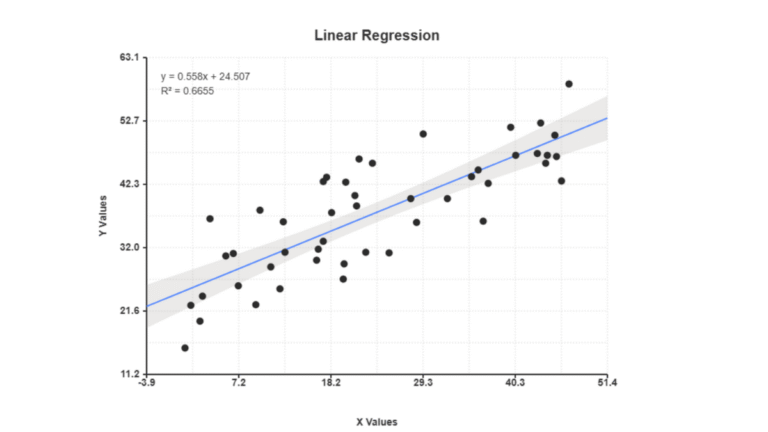
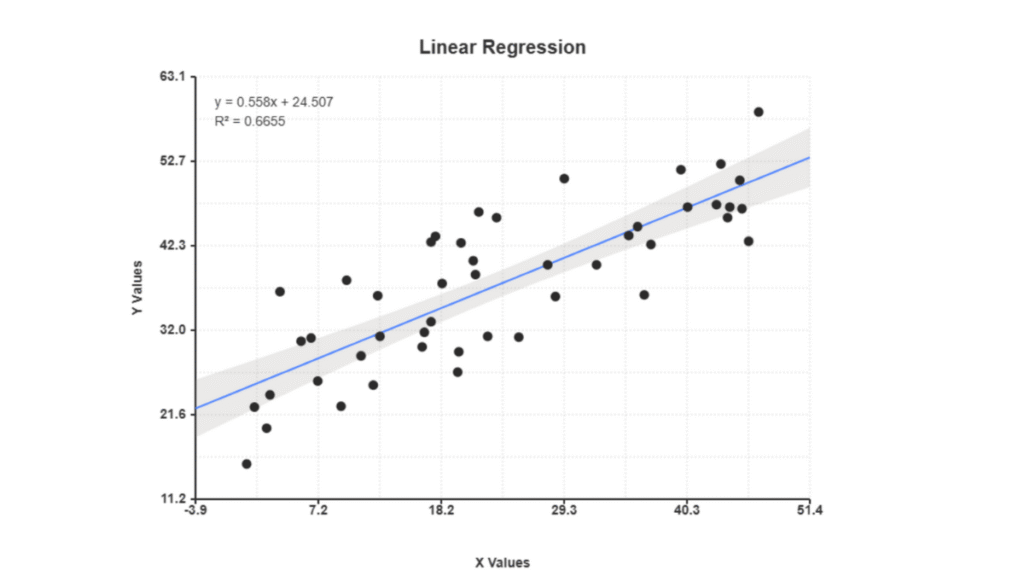
In a scatter plot with confidence intervals, shaded areas are visible. These areas show where the true line is. The wider the band, the less certain we are.
Real-world examples are used to explain confidence intervals. For example, if sales are predicted based on ads, the interval shows a range of possible sales. This provides a realistic view, not just one number.
How to Calculate Confidence Intervals for Simple Linear Regression
Calculating the confidence intervals involves several steps. You must understand your data, regression line, and variability in your measurements. The math can be difficult, but knowing it helps you understand your results.
The formula includes the predicted value, plus or minus, a margin of error. This margin depends on the standard error and critical value of the t-distribution. Most tools do this for you, but knowing how helps you trust your analysis.
Understanding the 95% Confidence Level
The 95% confidence level is commonly used. This means that if the study was conducted 100 times, approximately 95 times the interval would have the true line. It does not imply that there is a 95% chance that the true value is in a specific interval.
I prefer the 95% level because it strikes a good balance. You can choose 90% for a narrower interval or 99% for more certainty. However, 95% is widely accepted in most fields.
Factors Affecting Interval Width
Several things affect how wide your confidence intervals are. Knowing these helps you improve your data:
- Sample size: More data means narrower intervals
- Data variability: Wider intervals if data is scattered
- Distance from mean: Intervals widen as you move away from the center
- Confidence level: Higher levels mean wider intervals
The intervals are the narrowest near the middle of the data. They become wider as predictions are made further away. This demonstrates that extrapolation is riskier than interpolation.
How to Calculate Confidence Intervals in Linear Regression Using Tools
Modern software makes it easy to calculate the confidence intervals. Programs such as Prism have features for graphing intervals directly. You just need to enable the option, and the software does the hard work for you.
When using digital tools, here’s how to calculate confidence intervals:
- Excel: Use the LINEST function with CONFIDENCE.T
- Prism: Choose “Show confidence bands” in the options
- R Programming: Use predict() with interval=”confidence”
- Python: Use statsmodels or scipy.stats libraries
Basic online scatter plot generators do not have confidence interval features. Specialized software is required for advanced analysis. Prism, R, and Python are the top choices for professional visualization.
Plotting the Linear Regression Confidence Interval on Your Graph
Adding confidence intervals to a scatter plot makes it more useful. The shaded bands around the line clearly show the prediction reliability. This visualization helps everyone understand the uncertainty in the model.
When you plot confidence intervals, notice how the bands change in width. Narrow sections indicate high confidence, whereas wider areas indicate more uncertainty. This information is key to deciding which predictions to trust.
I always make the confidence bands visible. Light shading works best so that your data points are clear. Some tools allow the user to choose colors, transparency, and confidence levels to show at once.
Once you get the hang of it, interpreting the confidence intervals is easy. Any point in the shaded area is likely to occur. Points outside the range are possible but less likely. This helps you make smart decisions about your predictions.
Interpreting and Analyzing Your Scatter Plot Results
Your best fit line calculator online has done its job. Now, let us learn how to read and understand the results. The numbers and visual elements on your screen provide important insights.
Many people stop at creating graphs. However, understanding the results is where the real value lies. Let us examine each element to draw meaningful conclusions from your data.
Reading the Best Fit Line Calculator Results
When the scatter plot generator is finished, you will see three main outputs. The graph shows the data points with a line of best fit. You will also see a regression equation and statistical measures, such as the R-squared value.
The equation is in the form Y = mX + b. This means that m is the slope and b is the y-intercept. Advanced calculators may show more numbers. I will explain what each of these means.
The visual aspect is crucial. Observe how close your data points are to the line. A tight grouping indicates a strong relationship. The scattered points indicate a weaker connection.
Understanding the Regression Equation
The regression equation defines the line of best fit. It allows you to predict values and understand the relationship between your variables. Every regression line calculator uses the format Y = mX + b.
Understanding the slope and intercept is vital to this process. Let us break down each part so that you can confidently explain your results.
Slope Interpretation
The slope coefficient (m) shows the change in Y for a 1-unit increase in X. This is very practical. For example, if the slope is 3.5, each dollar spent on advertising adds $3.50 to sales.
The slope can be either positive or negative. A positive slope indicates that both variables increase together. A negative slope indicates that Y decreases as X increases. The size of the slope indicates the strength of the effect.
Always consider the units of measurement when interpreting the slope. A slope of 2 implies something different depending on what you are measuring.
Y-Intercept Meaning
The intercept parameter (b) shows the value of Y when X equals 0. In our advertising example, this is the expected sales revenue when spending zero dollars. Sometimes, this does not make sense in real life.
For example, when analyzing height and weight, the y-intercept would be the weight at zero height. This is not logical. Instead, focus on the slope.
The y-intercept is mathematically necessary for predictions within the data range. Even if it does not make sense, it ensures that your trendline fits your data well.
Making Predictions Using Your Trendline
One of the best uses of the regression equation is to make predictions. Plug in any X value to find the corresponding Y-value. This turns your best fit line calculator online into a forecasting tool.
Remember, only make predictions within the original data range. Do not attempt to predict values outside your data. This is called extrapolation and often yields unreliable results.
Suppose your equation is Y = 2.5X + 10, and you want to predict Y when X = 30. Simply substitute: Y = 2.5(30) + 10 = 75 + 10 = 85. The predicted Y value is 85.
| Prediction Scenario | X Value | Calculation | Predicted Y Value | Reliability |
|---|---|---|---|---|
| Within data range | 30 | 2.5(30) + 10 | 85 | High confidence |
| Near data boundary | 95 | 2.5(95) + 10 | 247.5 | Moderate confidence |
| Beyond data range | 150 | 2.5(150) + 10 | 385 | Low confidence |
| Far extrapolation | 300 | 2.5(300) + 10 | 760 | Not recommended |
Please note that predictions are estimates and not guarantees. The R-squared value indicates how well the trendline fits the data. Lower R-squared values indicate less precise predictions.
Identifying Outliers and Unusual Points
Outliers are data points that are far from the line of best fit. They require special attention. Look for points that do not follow the general pattern.
An outlier might be a mistake or an unusual occurrence. For example, in studying study hours and test scores, an outlier could be a student who was sick or exceptionally talented in a particular subject.
Check if removing an outlier significantly changes your regression equation. If so, that point is very influential. You should consider whether it should be included.
Some outliers are noteworthy. They may show special circumstances, new opportunities, or problems. Do not delete outliers without checking them first.
Most regression line calculator tools do not automatically identify outliers. You will need to search for them visually. Look for points that are far from the line compared to the others. The residuals were calculated to systematically identify outliers.
Best Practices for Creating Effective Scatter Plots
Creating effective scatter plots requires more than just technical skills. It is about making your charts clear and easy to understand. Whether you are using a trendline maker or advanced software, following the best practices is the key. This ensures that your charts share insights clearly and avoid common mistakes.
Many beginners struggle with their first data visualization. However, most mistakes can be prevented with the right knowledge.
Common Mistakes When Using a Best Fit Curve Generator
One big mistake is using a linear trendline on data that’s clearly curved. When using a best fit curve generator, check your data’s shape first. A straight line on exponential data can be very misleading.
Another mistake is putting too many data series on one chart. This makes the chart hard to read. It’s best to keep to two or three series on one scatter plot.
Ignoring outliers without checking them can hide important insights. Always ask if unusual points are errors or valuable exceptions.
It’s dangerous to predict data far beyond what you have. The relationship you’ve found may not apply outside your data range. Stick to predicting within the range of your data points.
Tips for Better Data Visualization
Creating good scatter plots requires attention to design. I use a checklist to ensure that my charts are effective every time.
Different colors were used for each data series. Ensure that your data points contrast well with the background. Light grey points on white will not help your readers.
Choose the correct size for your points. They should be large enough to be visible but not so large that they overlap. I use 6-8 pixel diameter points.
- Add descriptive titles: Your chart title should explain what the data shows, not just label variables
- Include units in labels: Always specify whether you’re measuring dollars, meters, percentages, or other units
- Use consistent formatting: Keep font sizes, colors, and styles uniform throughout your visualization
- Provide context: Add reference lines or shaded regions if they help interpretation
These small details can make a significant difference. Investing time in formatting makes your visualizations clearer and more professional-looking.
Choosing the Right Scale and Labels
Choosing the appropriate scale is important for how the audience perceives the scatter plot. Whether to start your axes at zero depends on your data and what you are trying to show.
Starting at zero is good for some data to show differences clearly. However, it can hide important variations in other cases. I decide based on each situation, not a blanket rule.
Keep the axis intervals the same on both sides. Uneven spacing confuses readers and distorts their perception. If your axis has 0, 10, 25, or 100, something is wrong.
Rotate labels if they are too long. Angled text helps to prevent overlap. I find that a 45-degree rotation works best for space and readability.
Logarithmic scales are useful for data with large differences. I use them when my data range from single digits to thousands or millions.
When to Use Different Trendline Types
Choosing the correct trendline type from the best fit curve generator is key for an accurate analysis. Each type fits different data patterns.
I used linear trendlines for data with a constant rate of change. If adding one unit to X always adds the same unit to Y, a straight line is best. This is common for speed and distance.
For data with curves and turning points, polynomial trendlines were used. Second-order polynomials (quadratics) are suitable for simple curves. Higher-order handle more complex patterns. I rarely go beyond third-order to prevent overfitting.
Apply exponential trendlines for growth or decay, where the rate changes. These include population growth, compound interest, and radioactive decay. Your trendline maker should clearly show this.
Logarithmic trendlines are used for diminishing returns. Learning curves and saturation effects often exhibit this pattern. Early gains are large, but later improvements are smaller in number.
For scaling relationships in which both variables change proportionally, use power trendlines. These are common in physics and engineering, such as area and volume.
The key is to match the trendline type to the behavior of the data. I plotted several options and compared their R-squared values. This gives me confidence in my choices.
Conclusion
I showed you how to create data visualizations using different tools. You know how to use a scatter plot with line of best fit generator. These include Excel, Google Sheets, Desmos, and other online tools.
It is not just about making charts. It is about understanding what they show. You learned to read charts, understand R-squared values, and gain insights from equations. These skills help tell data stories.
Try using these tools with your data. Please determine which one works best for you. Consider who you are showing your charts to. Corporate presentations differ from academic papers.
If you are new, start with a few data points and a trendline. Look at the relationship. As you improve, try more things, such as confidence intervals and multiple datasets. The steps I provided will help you whenever you need them.
You are now ready to tackle data visualization challenges. Please keep this guide for future reference. Your journey to understanding data begins now. I am sure you will make visualizations that are clear and accurate.
FAQ
What is a scatter plot with line of best fit generator?
A scatter plot with line of best fit generator is a tool. It helps create scatter plots and find trendlines. It can be used online or on a computer.
These tools are either free or inexpensive. They show important statistics, such as correlation coefficients. This helps in observing patterns in the data.
What type of relationship does the scatter plot show?
A scatter plot can show three types of relationships: a positive correlation, which means that both variables increase together. A negative correlation means that one goes up as the other goes down, and no correlation means that there is no pattern. The strength of these relationships is indicated by the correlation coefficient. It ranges from -1 to +1.
What is the correlation of a scatter plot?
The correlation of a scatter plot shows the strength of the relationship. This is called the correlation coefficient (r). It ranges from -1 to +1.Values close to +1 or -1 indicate a strong relationship. Values near 0 indicate a weak relationship. Most tools will calculate this for you.
How do I use a scatter plot generator free online?
Using a free online scatter plot generator is easy and convenient. First, select the tool you chose. Then, enter your data and select your chart options. You can add a trendline and choose its type. Customize your chart with color and labels. Then, generate and export the chart.
Can I create a scatter plot maker with two sets of data?
Yes, you can! Google Sheets and Microsoft Excel allow this. Online tools can also be used to compare relationships with multiple datasets. For example, sales trends or the effects of different treatments on outcomes can be compared.
What is the difference between R and R-squared values in regression?
R and R-squared are related but distinct. R measures the strength and direction of this relationship. It ranges from -1 to +1.R-squared shows how much variation in Y is explained by X. It ranges from 0 to 1. A higher R-squared value indicates that the line fits the data better.
How do I interpret the regression equation from a best fit line calculator?
The regression equation is Y = mX + b. The slope (m) shows how Y changes with X. The y-intercept (b) is the value of Y when X is 0.To make predictions, plug in an X value into the equation. This turns your trendline into a forecasting tool.
Which scatter plot generator should I use for professional research?
For professional research, tools with advanced statistics and quality outputs should be used. Desmos is good for education and quick analysis. It is free and easy to use. Microsoft Excel is great for business and research. It offers several trendline options and statistical add-ins. For advanced analysis, GraphPad Prism, R, or Python can be used.
Can I create a scatter plot trendline tool chart in Excel with non-linear data?
Excel is great for nonlinear data. It offers several regression types. Choose the appropriate type for your data. Try different types and look at the R-squared value. The option with the highest R-squared fits the data best. Excel will calculate the equation.
What’s the best free scatter plot maker for students?
Desmos stands out as the top free tool for scatter plot maker, especially for students. It offers a user-friendly interface, is cost-free, and can automatically compute regression lines. Ideal for assignments and presentations, it also helps students develop workplace skills. This tool is perfect for school projects.
How do I add multiple trendlines to one scatter plot?
To incorporate multiple trendlines, begin by generating a scatter plot. Next, individually click on each data series to select it. For each series, right-click and choose “Add Trendline.” You can assign a unique trendline type and color to each series. This approach is beneficial for comparing various data sets, making it easier to discern insights.